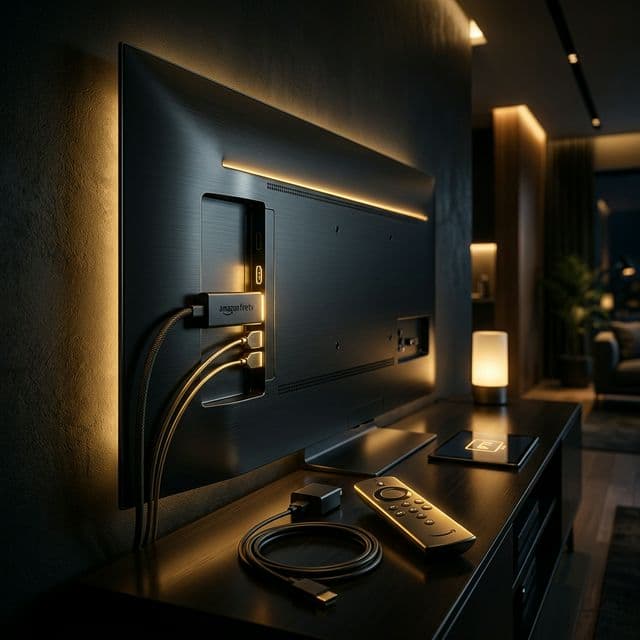
What You Need Before Starting
Configuring an IPTV service on your Amazon Firestick is a surprisingly simple process, but gathering your tools in advance makes the installation seamless. Here is everything you must prepare before diving into the setup on your Fire TV Stick:
Requirements Checklist
- Amazon Firestick — Any modern model will do the trick, though the Firestick 4K, 4K Max, or Fire TV Cube are highly recommended for the smoothest performance.
- Stable Internet Connection — You need a baseline of 25 Mbps for standard HD streams, and ideally 50+ Mbps if you plan to watch 4K content.
- IPTV Subscription — An active account equipped with your unique login details (typically an Xtream Codes login or an M3U playlist URL).
- Amazon Account — Required simply to download official applications from the standard Amazon Appstore.
Once you have checked off that list, the entire configuration takes less than 10 minutes. Let’s break down the exact steps to get IPTV running on your device.
Step 1: Enable Developer Options
Because premium IPTV applications are often not hosted on the official Amazon Appstore, you must grant your device permission to install Apps from Unknown Sources. This is a perfectly safe, easily reversible toggle that permits sideloading.
- Starting from your Firestick home screen, head over to the Settings menu (the gear icon located in the upper right corner).
- Scroll to the right and click on My Fire TV (older devices might label this as Device & Software).
- Click on Developer Options.
- Toggle on Apps from Unknown Sources (you might also see an option for ADB Debugging, which you can enable as well).
- A standard warning prompt will pop up — simply hit Turn On to finalize your choice.
Note: If Developer Options is completely hidden from your menu, navigate to Settings → My Fire TV → About, and rapidly click on your device's name exactly 7 times. A message will confirm you are now a developer, unlocking the hidden menu.
Step 2: Install Downloader App
The Downloader app is an essential, free tool that lets you pull APK installation files directly from the web onto your Firestick. It sits right inside the official Amazon Appstore, making it 100% secure to download.
- Navigate to the Search icon (the magnifying glass) on the main Firestick dashboard.
- Type in the word Downloader and select the corresponding result from the dropdown list.
- Choose the Downloader app (you are looking for the bright orange icon created by AFTVnews).
- Hit Download (or Get) and wait patiently for the installation bar to finish.
- Once complete, click Open to launch the utility.
Step 3: Download a Streaming Player (Smarters Pro)
IPTV Smarters Pro stands out as the ultimate IPTV application for Firestick devices, celebrated for its clean navigation, rock-solid stability, and wide format support. Here is how to sideload it using your new Downloader tool:
- Open the Downloader app and grant it any necessary storage permissions it asks for.
- Select the URL search bar and carefully type:
iptvsmarters.com - Hit Go to load the website, then navigate over to their designated download area.
- Select and download the Firestick / Android TV version APK file.
- Once the file finishes downloading, a prompt will appear — click Install.
- When the installation wraps up, simply click Done (we will launch the app in the next phase).
Step 4: Enter Your Credentials
Now comes the exciting part: linking IPTV Smarters Pro directly to your paid IPTV subscription. Grab the specific credentials your provider emailed you upon signing up. Most premium services rely on the Xtream Codes API, though some use M3U URLs.
- Locate IPTV Smarters Pro by navigating to Settings → Applications → Manage Installed Applications and launch the app.
- Read through and accept the user terms and conditions.
- Select Login with Xtream Codes API (this is highly recommended) or choose Load Your Playlist if you only have an M3U link.
- Carefully input your subscription data:
- Any Name: Simply name your profile whatever you like (for example, "My IPTV").
- Username: The specific username assigned by your IPTV provider.
- Password: Your secure IPTV password.
- Server URL: The exact portal address provided by your host (e.g.,
http://provider.com:8080).
- Hit Add User and give the application a moment to download your massive channel guide.
Step 5: Start Watching
You did it! Your Firestick is now a fully unlocked IPTV powerhouse. Here is a quick breakdown of how to navigate your newly loaded content:
- Live TV — Dive into thousands of real-time broadcasts neatly sorted by country and genre. Don't forget to utilize the search tool to hunt down specific networks.
- Movies — Explore the expansive VOD library packed with on-demand films, ranging from fresh theatrical drops to beloved cinema classics.
- Series — Discover complete television shows with every season and episode perfectly organized for your next binge-watching session.
- Catch-Up — Did you miss a crucial broadcast? Look for channels equipped with the catch-up feature, allowing you to replay content that aired over the past few days.
Best Streaming Apps for Firestick 2026
While IPTV Smarters Pro is our top overall pick, these fantastic alternative IPTV players also run flawlessly on Amazon hardware:
- TiviMate (Premium — $4.99 one-time fee) — The absolute gold standard for power users, offering unmatched EPG integration, DVR recording features, and a stunning, cable-like interface.
- XCIPTV Player (Free) — A brilliant, cost-free alternative that runs smoothly and offers deep integration with Xtream Codes alongside a very clean favorites system.
- GSE Smart IPTV (Free) — An incredibly versatile, feature-heavy player that easily handles complex playlist formats like M3U, JSON, and standard Xtream Codes.
- Perfect Player (Free) — A streamlined, lightweight viewing option designed specifically for users who want pure, uncomplicated performance without any unnecessary menu bloat.
Troubleshooting Common Issues
If you hit a roadblock during your setup or while viewing, here are the quickest fixes for the most frequent headaches:
Channels Not Loading
Meticulously re-check your typed credentials for typos. Verify with your provider that your subscription is currently active and hasn't expired. Finally, try rebooting the app or restarting the Firestick entirely.
Buffering Issues
Run a quick speed test to ensure you are hitting that 25 Mbps minimum threshold. If possible, ditch the WiFi and plug in a dedicated Ethernet adapter. Also, try clearing the app's cache by visiting Settings → Applications.
App Crashes
Confirm that your Firestick operating system is fully updated to the latest version. If problems persist, completely uninstall and reinstall the IPTV application. A quick device restart will also clear the hardware cache.
Cannot Find Developer Options
Simply go to Settings → My Fire TV → About, and click the center button on your device's name exactly 7 times in a row. This secret trick instantly unlocks the Developer Options menu.
Ready to unlock your Firestick's true potential? HelixStream makes cutting the cord effortless. With access to over 120,000 live channels, ultra-smooth 4K playback, and comprehensive setup guides for every device, you'll be streaming in minutes. We stand by our premium service with a rock-solid 7-day money-back guarantee on every single plan. Join the thousands of satisfied cord-cutters who trust HelixStream for their daily entertainment today.
Frequently Asked Questions
Get Started with HelixStream Today
Join thousands of satisfied customers streaming 120,000+ channels in crystal-clear 4K quality.

Hicham Aït Menna
Founder & CEO of HelixStream
IPTV industry expert with years of experience in digital streaming solutions. Passionate about delivering premium entertainment worldwide.
Learn more about Hicham